
Search and filtering are the two main ways shoppers navigate to products they didn’t know the exact name of. This guide covers the search side. For the filtering side, read Ecommerce UX Filter Design Patterns. The two work together, and most stores underinvest in both.
The Problem Most Stores Ignore
Shoppers who use your site search convert at 2 to 3 times the rate of shoppers who don’t. That’s not a minor improvement. That’s the single highest-ROI channel in your store, and most merchants treat it as an afterthought.
The average ecommerce store has a zero-result rate of 10 to 20 percent. That means one in five searches returns nothing. Every one of those is a conversion you just handed to a competitor. The shopper knew what they wanted. They typed it in. Your store said “sorry, nothing here.” They left.
Fix search before you run another ad. The traffic you’re already paying for is leaking through this hole.
This article gives you the ecommerce search UX strategies I recommend to every client: predictive search, no-results page design, result ranking, in-search filtering, mobile UX, analytics, benchmarks, and the tools that make it happen. Each section has a specific action you can take this week.

Why Search Visitors Are Your Best Customers
Site search users are not browsing. They are buying. When someone types a query into your search bar, they’ve already made most of the decision. They know the category. They probably know the price range. They’re looking for the right product.
79 percent of shoppers who find a product through site search go on to purchase it. Compare that to the 1 to 3 percent average conversion rate for visitors who browse by category. The math is brutal and the conclusion is clear: your search experience is worth more to your revenue than your homepage, your category pages, and most of your ad spend combined.
The problem is that most search implementations are default-configuration Shopify or WooCommerce search. Default search is keyword-matching only. It doesn’t handle misspellings. It doesn’t understand synonyms. It shows products in random order with no relevance ranking. It returns zero results for product names that don’t exactly match the catalog.
You can fix most of this in a week. Here’s how.
Autocomplete and Predictive Search: The 300ms Rule
Every extra 100 milliseconds of search latency costs you 1 percent in conversions. That’s not a guess. That’s documented across major retail platforms. Your search needs to be fast, and it needs to start showing results before the user finishes typing.
Autocomplete has two jobs. First, it reduces friction by completing queries faster. Second, it surfaces products visually, converting the search bar itself into a selling surface. Good ecommerce search design starts here: the faster and more forgiving the input experience, the higher the search-to-click rate.
Good predictive search does all of these things simultaneously:
Handles misspellings in real time. “Kithcen sknife” should surface kitchen knives instantly, not return zero results. Fuzzy matching is a standard feature in every modern search tool. If yours doesn’t have it, replace it.
Surfaces category suggestions. If someone types “running,” show them “Running Shoes,” “Running Apparel,” and “Running Accessories” as category shortcuts, not just individual products. This gets them to a filtered results page faster than any product link.
Shows visual product cards. Thumbnail images in the dropdown increase click-through rates by 35 percent compared to text-only suggestions. Show the image, name, price, and a “quick add” if your inventory allows it.
Caps suggestions at 5 to 8 results. More than that creates decision paralysis. Fewer than 4 doesn’t give enough signal. Test in that range and measure which count drives the most clicks.
Tracks trending searches. When the search bar is empty or has one character, show trending searches. This is social proof that also surfaces popular products you want to sell. Seasonal trends, current promotions, bestsellers. All of it goes here.
The implementation: Shopify apps like Searchie, Boost Commerce, and SearchPie all include solid autocomplete. On WooCommerce, AJAX Search Pro and Relevanssi are the two I’ve seen perform best. Budget 2 to 3 days for setup and configuration.
The No-Results Page: Your Biggest Conversion Killer
A zero-results page is the moment your store says “we don’t have what you want.” The shopper’s intent is at its peak. They came ready to buy. You just told them to leave.
The benchmark zero-result rate for a well-optimized ecommerce store is under 5 percent. The industry average is 10 to 20 percent. If your rate is above 5 percent, this is where you fix it before anything else.
Here’s why your zero-result rate is probably too high:
- Your search is exact-match only (no fuzzy matching, no stemming)
- Your product catalog uses internal naming instead of customer language (“SKU-4471-BLK” instead of “Black Running Shoes”)
- Your search doesn’t recognize synonyms (“couch” vs “sofa,” “tv” vs “television”)
- Seasonal or discontinued products return zero results instead of redirecting to alternatives
Fix 1: Switch to fuzzy matching. Every major search tool supports this. Enable it. Test your 20 most common search queries. See which ones still fail. Fix those manually with query rules.
Fix 2: Add synonym dictionaries. Build a list of synonyms specific to your catalog. If you sell furniture, map “sofa” to “couch” to “settee.” If you sell electronics, map “TV” to “television” to “flat screen.” Most search apps have a synonym editor. Use it.
Fix 3: Design the no-results page properly. When someone does get zero results, don’t show a blank page with “Sorry, no results found.” That’s the worst possible outcome. Instead, show:
- A “Did you mean X?” suggestion based on the closest matching query
- Your 6 to 8 bestsellers (social proof and a second chance to convert)
- 3 to 4 category shortcuts (“Browse by category”)
- A search bar, pre-filled with their query, so they can refine without starting over
- A contact link or chat prompt (“Can’t find it? Ask us”)
Baymard Institute research shows that a well-designed no-results page retains 40 percent of shoppers who would otherwise abandon. That’s almost half your lost traffic recoverable with a one-day design fix.
Fix 4: Add query rules for high-traffic zero-result terms. Export your search analytics (covered later in this article). Find the top 20 queries that return zero results. For each one, create a redirect to the closest matching category or product. This manual step recovers the most valuable lost traffic immediately.
Search Result Ranking: Why Relevance Isn’t Enough
Default search ranking is usually alphabetical or by product ID. That’s useless. The best search result ranking combines four signals:
Text relevance. Does the product name, description, or tags match the query? This is the baseline. Every search tool does this. The difference is in the weighting: product title matches should count more than description matches.
Business rules. You want to surface products you actually want to sell. High-margin items, in-stock items, and items on promotion should rank higher than technically-matching products that are out of stock or low margin. Configure boost rules for these signals.
Popularity signals. Products with more purchases, higher click-through rates, and better reviews should rank higher for ambiguous queries. “Blue shoes” could match 200 products. Surface the ones your shoppers actually buy.
Personalization. Returning visitors should see results influenced by their browsing and purchase history. First-time visitors see your bestsellers. Repeat visitors see products similar to what they’ve bought before. This alone lifts conversion by 10 to 15 percent on returning traffic.
The practical setup: configure your search tool with these four layers in order. Most tools (Boost Commerce, Searchie, Algolia) let you set boost rules in their admin. Start with in-stock and high-margin boosts. Add popularity signals next. Personalization is a phase-2 project once the basics are working.
One critical rule: never surface out-of-stock products in top positions. Shoppers click on them, land on a product page with an “out of stock” badge, and bounce. That’s a wasted click and a damaged experience. Filter out-of-stock products to the bottom of results or hide them entirely.
Filtering Within Search Results
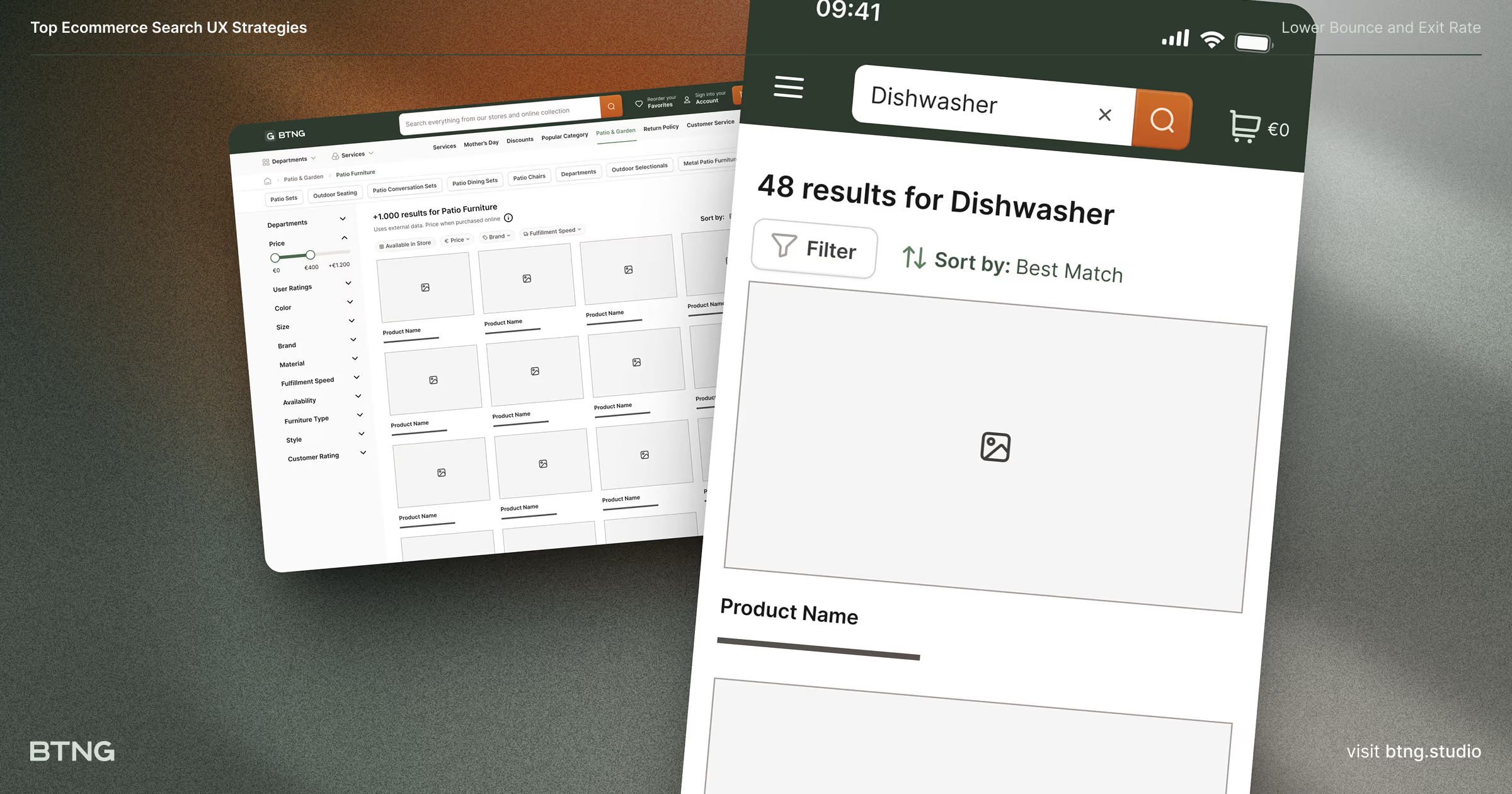
Search and filtering work together. When a shopper searches “running shoes,” they expect to be able to filter by size, color, price, and brand without losing their search context. Most stores break this experience by taking users to a category page instead of a filtered search results page.
The right pattern: keep the user on the search results page and show contextual filters based on the attributes of the matched products. If the search returns 80 products, show the filter facets that are relevant to those 80 products. Don’t show filters for attributes that have no matching products.
Four specific patterns that improve search+filter conversion:
Show result counts on filters. “(47 results)” next to each filter option sets accurate expectations. Shoppers don’t click filters that might return zero results. Show the count and they click with confidence.
Enable multi-select filtering. Shoppers want “Red OR Blue,” not “Red AND Blue.” Most faceted navigation systems default to AND logic. Switch to OR logic for values within the same attribute (multiple colors, multiple sizes). Keep AND logic across attributes (size AND color).
Apply filters without a page reload. Every page reload in a filtering flow costs you conversions. AJAX-based filter updates keep the shopper in flow. This is a 20 to 30 percent improvement in filter usage rates.
Persist active filters visually. Show active filters as removable chips above or beside the results. The shopper should always know what filters are applied and be able to remove them with one click. Hidden filter state is a major frustration point that drives abandonment.
For deeper coverage of filter design patterns, read Ecommerce UX Filter Design Patterns. This article focuses on the intersection of search and filtering specifically.
Mobile Search UX: Different Device, Different Rules
55 percent of ecommerce traffic comes from mobile. Search behavior on mobile is different from desktop in three important ways: users type less, tolerate errors more, and expect visual results faster.
Your mobile search UX needs these six elements:
A large, always-visible search bar. On mobile, the search bar should be at the top of every page, not hidden behind a menu. Minimum height of 44px (the iOS tap target guideline). Full-width on smaller screens. The search bar should be the first thing a mobile shopper sees.
Sticky search bar on scroll. Desktop users can scroll back up to search. Mobile users won’t. Fix the search bar to the top of the viewport when the user scrolls down. This single change increases search usage by 20 to 40 percent on mobile.
Large touch targets for autocomplete results. Each autocomplete suggestion needs a minimum touch target of 44px tall. Small tap targets cause mis-taps, frustration, and abandonment. Test on an actual phone, not a browser emulator.
Voice search input. 27 percent of mobile users in the US use voice search. A microphone icon in the search bar enables native voice input with one line of code on most platforms. The queries are longer and more specific, which means higher purchase intent.
Mobile-optimized autocomplete. On mobile, limit autocomplete to 4 to 5 results maximum. More than that requires scrolling, which breaks the flow. Each result needs a large tap target and a product image.
Keyboard type optimization. Set the search input to trigger a search-optimized keyboard on mobile (no autocorrect, return key labeled “Search”). This is a HTML attribute change that takes 5 minutes and reduces user friction.
The Baymard Institute mobile ecommerce benchmark study found that 32 percent of mobile shoppers abandon search because the UX is too frustrating. That’s a third of your mobile search users you’re losing to bad implementation. Fix the six elements above and you recover most of them.
Search Analytics: Your Product and Inventory Intelligence System
Your search data is the most valuable unstructured feedback you have. What people search for tells you what they want to buy. What returns zero results tells you what you’re missing. What people search for and then don’t click on tells you what you’re misrepresenting.
Set up a search analytics dashboard with these four reports:
Top search queries. Your 50 most-searched terms, ranked by volume. This is a direct read of your customers’ purchase intent. If “wireless earbuds” is in your top 10 and you don’t stock it, stock it. If “black leather belt” is searched 200 times a month and you have 3 options, expand that category.
Zero-result queries. Every search that returns nothing. Export this weekly. The top 20 zero-result queries are your product gap list. If shoppers are searching for it, they want to buy it. Either add the product, add a synonym, or redirect to the closest alternative.
Low-click queries. Searches that get results but no clicks. This is your ranking and merchandising problem. The results exist but they’re irrelevant. Dig into these queries and fix the product data, synonyms, or boost rules.
Search-to-conversion funnel. Track: search performed, result clicked, add to cart, purchase. Each drop-off point is a specific UX problem. High result abandonment is a ranking issue. High product page abandonment is a product page issue. High cart abandonment is a checkout issue.
Shopify’s built-in analytics has a basic search report. For detailed search analytics, Boost Commerce and SearchPie both include dashboards. Google Analytics 4 with site search tracking configured gives you everything else.
Review search analytics once a week for the first month after any search change. Then monthly once you’ve stabilized. The data compounds over time and becomes your most reliable product intelligence.
Zero-Result Rate Benchmarks
Here’s where you stand relative to industry benchmarks:
- Under 5%: Excellent. Your search handles customer language well. Focus on ranking and personalization.
- 5 to 10%: Average. You’re losing meaningful revenue. Prioritize fuzzy matching, synonym dictionaries, and query rules for top zero-result terms.
- 10 to 20%: Poor. This is costing you significantly. Default search tool, no synonym management, no fuzzy matching. Replace or configure immediately.
- Above 20%: Critical. Your search is actively driving shoppers away. This is your top priority above every other conversion optimization effort.
To find your zero-result rate: in Shopify, go to Analytics > Reports > Online Store > Search. Look for searches with zero results. In GA4, set up a search terms report filtered by sessions where no product view followed the search event.
If your platform doesn’t give you this data, install a dedicated search tool that does. Flying blind on search performance is not acceptable when the fix is available for $30 to $100 a month.
Tools: What to Use and When
Three tools I recommend for Shopify stores at different stages:
SearchPie (Starter, $0 to $29/month): Best for stores under $500k annual revenue. Includes autocomplete, fuzzy matching, synonym management, and basic analytics. The free plan handles stores up to 500 products well. Upgrade to paid for analytics and advanced ranking.
Boost Commerce ($29 to $99/month): Best for stores in the $500k to $5M range. Stronger ranking controls, better merchandising rules, and detailed analytics. The filter integration is tighter than SearchPie. If you’re running significant ad spend and need search and filter to work together smoothly, this is the one.
Searchie / Searchanise ($14 to $99/month): Good mid-range option with strong visual search features. If you sell visually-driven products (fashion, home decor, furniture), the visual autocomplete and image-search features differentiate it.
For stores above $5M annual revenue or with complex catalog requirements, Algolia or Constructor.io are worth evaluating. Both require developer time to implement but deliver measurably better relevance and personalization. Budget 4 to 8 weeks for implementation.
WooCommerce stores: Relevanssi ($99/year) is the baseline upgrade from default WooCommerce search. For full-featured search with analytics, ElasticPress (cloud-hosted) or Yith WooCommerce Ajax Search work well at different price points.
All of the tools above now include some level of natural language search processing, meaning queries like “warm jacket for hiking” or “birthday gift under 50” map to relevant products even without exact keyword matches. This NLP capability is usually a single toggle in settings. Enable it. Queries that were zero-result on exact-match search start returning relevant results immediately.

Measuring Search UX Performance
Site search optimization is an ongoing process, not a one-time setup. Track these five metrics monthly after any search change:
Zero-result rate. Target: under 5 percent. Direction: down.
Search-to-purchase conversion rate. What percentage of search sessions end in a purchase? Industry average is 4 to 6 percent. Well-optimized stores hit 8 to 12 percent.
Revenue per search session. Total revenue from sessions that included a search, divided by total search sessions. This ties search directly to revenue. Track the trend month over month.
Click-through rate on search results. What percentage of search result pages lead to a product page click? Low CTR means poor ranking or irrelevant results.
Search abandonment rate. What percentage of shoppers who search leave without clicking anything? The industry benchmark is 20 to 30 percent. If you’re above 40 percent, your results are consistently failing.
Set a monthly review. Pull these five numbers, compare to the previous month, and identify the one that’s moving in the wrong direction. Fix that one thing. Repeat.
The Search Experience Audit: Do This Now
Spend 30 minutes auditing your own search before doing anything else:
- Search for your 5 bestselling product names. Do they appear in the top 3 results? If not, your ranking is broken.
- Search for your 5 bestsellers with a misspelling. Do you get results? If not, you need fuzzy matching.
- Search for a synonym of a product category (sofa/couch, pants/trousers, shirt/top). Do you get results? If not, you need a synonym dictionary.
- Search for something you don’t sell. What does your zero-results page look like? Would you stay on that page or leave?
- Do the above on your phone. Is the search bar easy to tap? Is autocomplete readable? Are the results fast?
Each failure in this audit is a conversion problem you can fix. Most of them take less than a day.

Inspiring Examples: What Good Search Looks Like
Amazon is the benchmark for search personalization at scale. Every result is ranked by a combination of relevance, purchase history, and business rules. Their zero-result rate is effectively zero. Their autocomplete surfaces categories, products, and brands in a visually differentiated dropdown. You cannot replicate this without their engineering budget, but you can steal the patterns.
Gymshark uses Boost Commerce on Shopify. Their search autocomplete shows product images, name, price, and color variants. Their zero-result page redirects to a curated “You might like” section rather than a blank page. Their mobile search bar is sticky and full-width.
ASOS uses tiered autocomplete: recent searches at the top, popular searches next, then product suggestions. This three-tier structure reduces the time to first click and increases search engagement. It’s replicable with most mid-tier search tools.
The pattern across all three: fast, visual, forgiving of typos, and designed to keep the shopper moving toward a product rather than away from the store.

If They Can’t Find It, They Won’t Buy It
Your search bar is the highest-intent conversion surface in your store. Shoppers who use it have already decided to buy. They’re asking you to confirm you have what they want.
Most stores fail that test. They return irrelevant results. They show zero results for reasonable queries. They deliver a terrible mobile experience. They have no idea what shoppers are searching for because they never look at the data.
You don’t need a six-figure replatform to fix this. You need a $30 to $100 per month search tool, configured correctly, with weekly analytics reviews.
Start with the audit above. Fix the zero-result rate first. Add fuzzy matching and synonyms next. Rebuild the no-results page. Then optimize ranking and add personalization. Track the five metrics every month.
Search converts at 2 to 3 times your baseline rate. Every improvement you make here compounds across every shopper who uses it.
What to Read Next
Search gets shoppers to product pages. Those pages have to close the deal. Product Page Anatomy covers the elements that convert on the destination side of the search journey.
For the filtering half of product discovery, Filter Design Patterns for Ecommerce covers faceted navigation, mobile filter UX, and the no-results trap in category browsing.
The most expensive mistakes across both search and product pages are documented in The €50,000 Ecommerce Mistakes.
Ready to fix your product pages and search UX together? See how the design subscription works.
- Product Page Anatomy - the destination search sends shoppers to
- Filter Design Patterns for Ecommerce - browse navigation as a complement to search
- Plantinum: ecommerce redesign for a Dutch interiors brand - how search and navigation UX was redesigned for a home and garden ecommerce store